Zoi AI ChatChat with Zois
한국어English

AI chat mod for inZOI

Talk to
your Zoi

Type what you want to say, and your Zoi answers in their own personality. The way you talk can even bring you closer.

Windows only inZOI on Steam
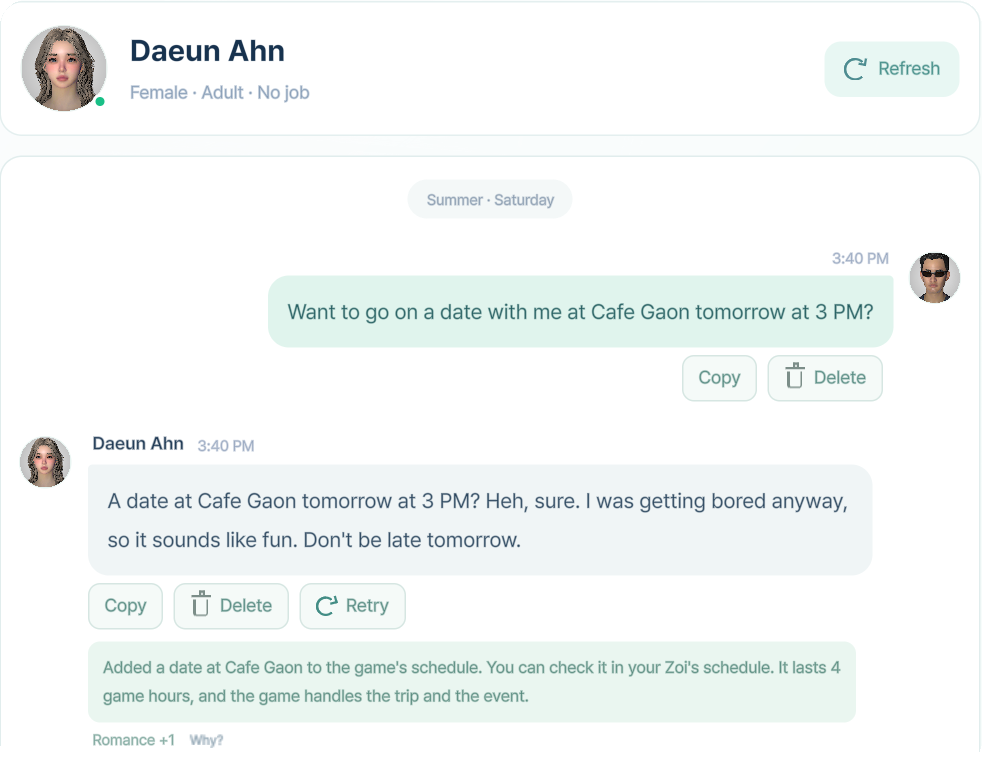
Date is setAdded straight to the game's schedule
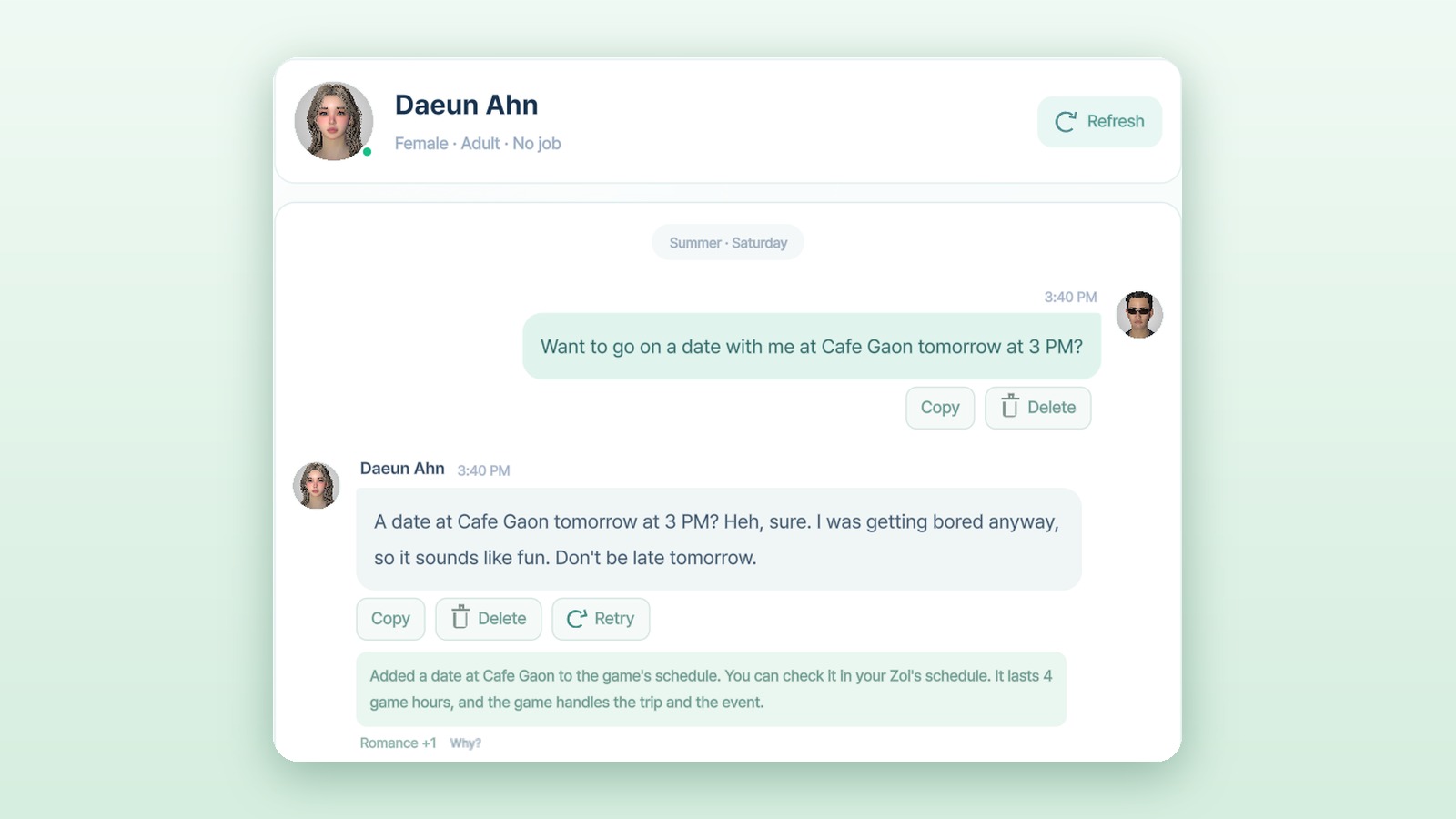
The Zoi AI Chat window: asked out on a date, the Zoi says yes and a notice says it was added to the game's schedule
Zois answer for themselvesIn their own personality and mood

Here's what you can do

Talk with your Zois

New here?

Never used an API?
That's fine

To answer you, Zois need a key that connects to an AI (an API key). We'll walk you through it, starting with how to get one for free.

What you can do

Good times
with your Zois

Talk, ask for things and make plans. Pick a topic from the menu.

Chatting with Zois

Talk with Zois by text chat.
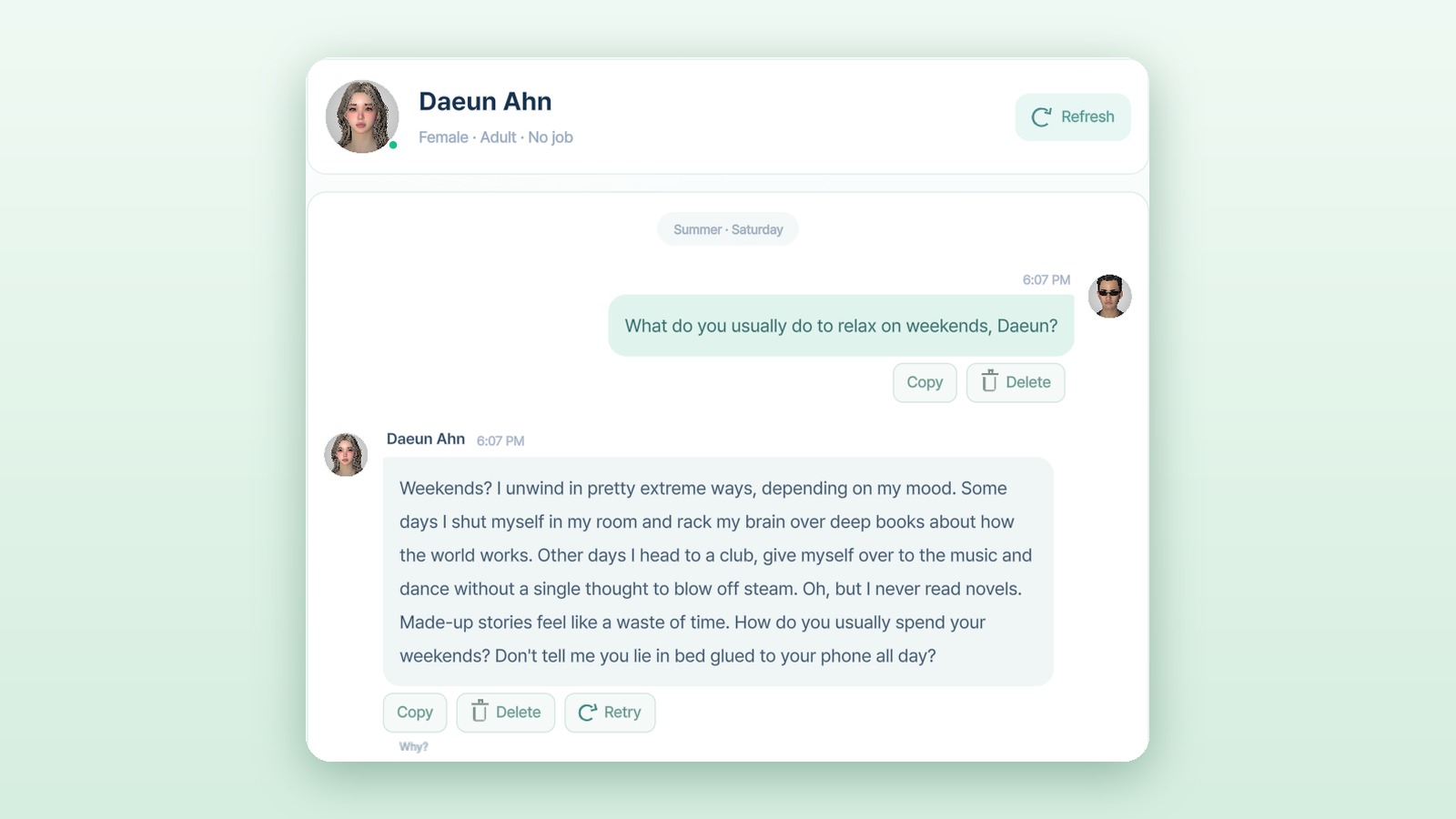
Every Zoi talks differently

Say the same thing to two Zois and you'll get different answers, depending on their personality and mood that day.
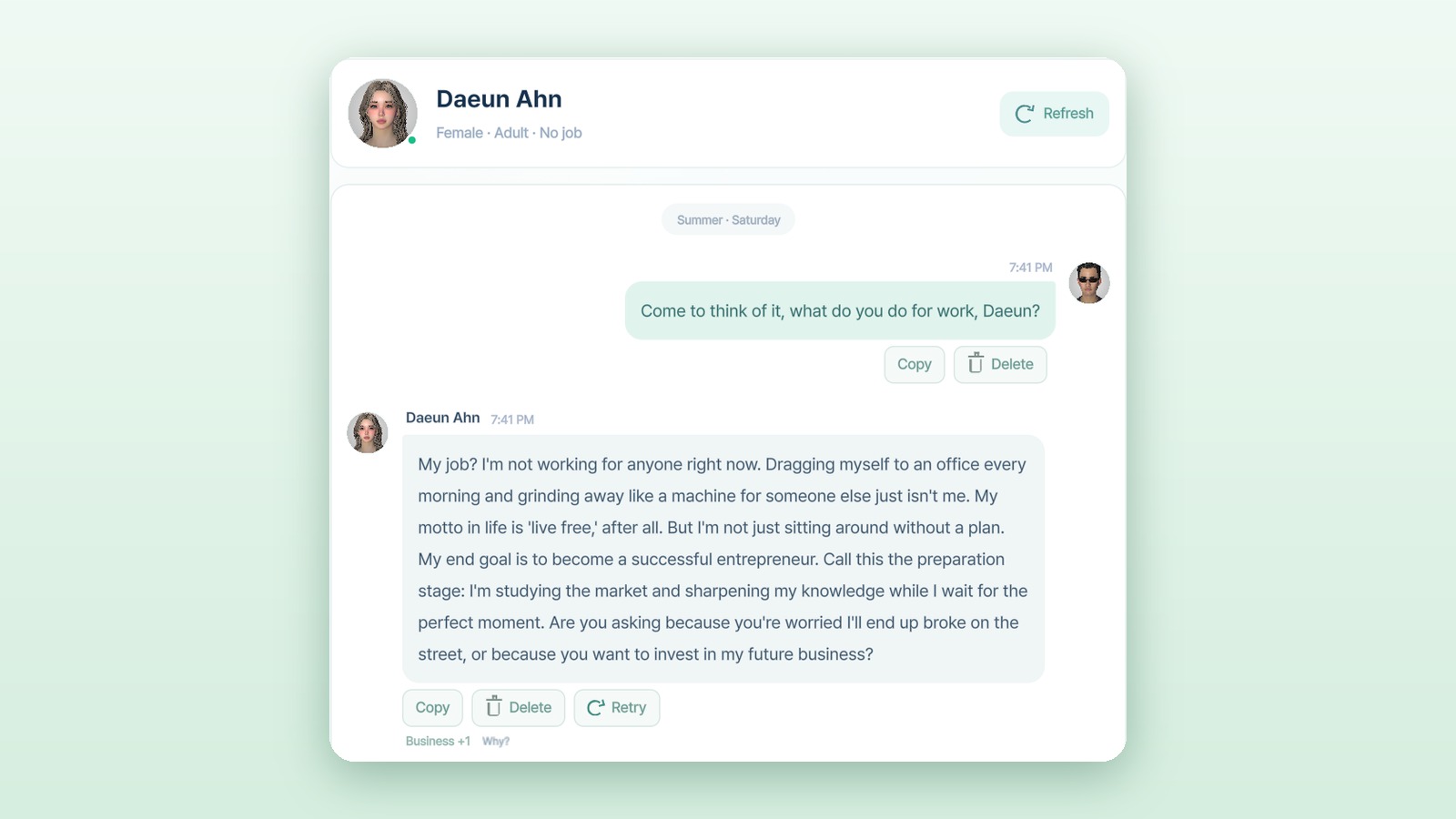
Zois talk about themselves

Ask “What do you do?” and they answer with their real job in the game. They also know where they are, what they're wearing and what they like.
Interactions

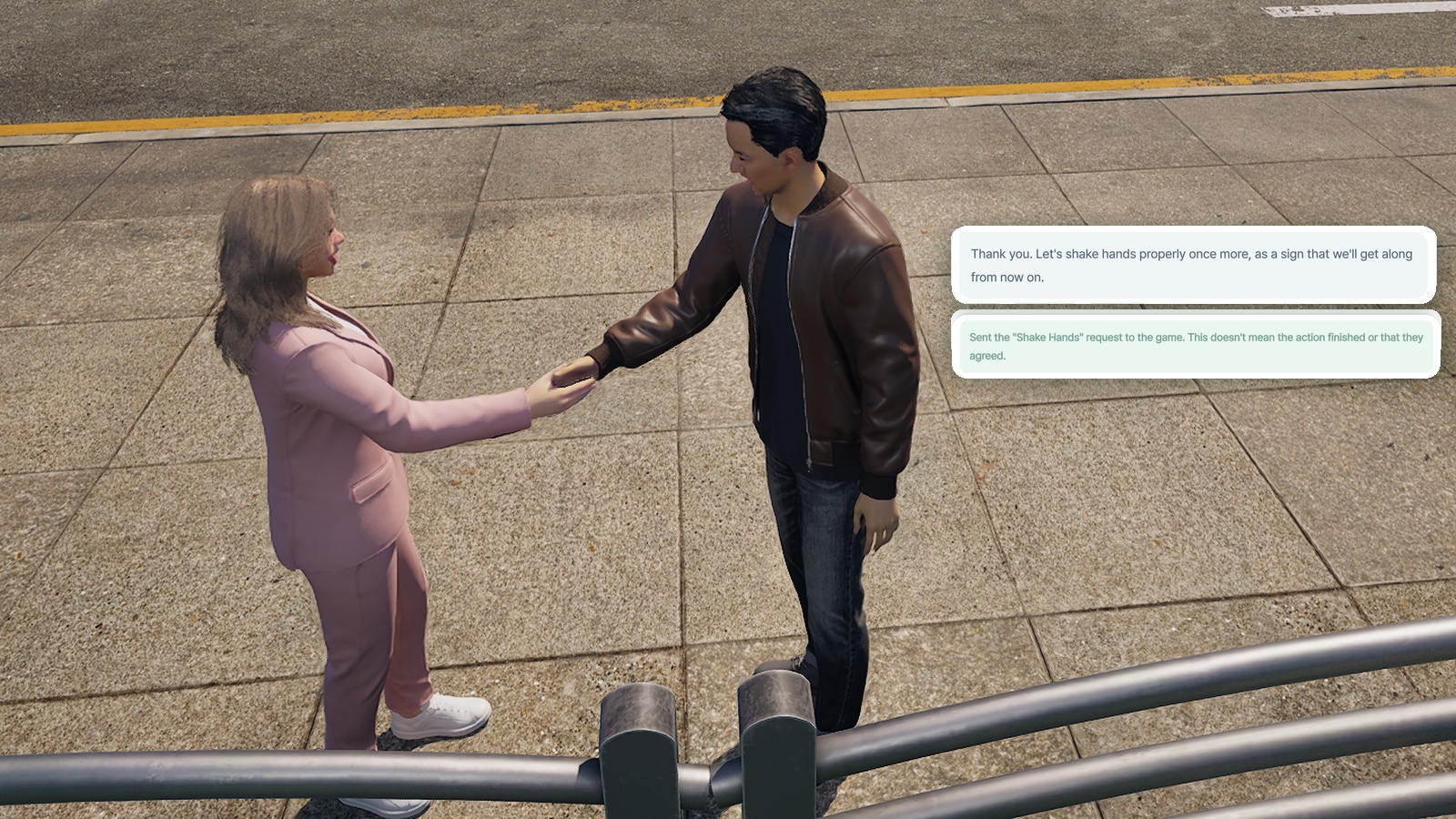
Ask in words and it really happens in the game.

Ask, and they really do it

Say things like “Give me a hug,” “Let's dance” or “Let's shake hands,” and your Zoi does it. If they don't feel like it, they may say no.

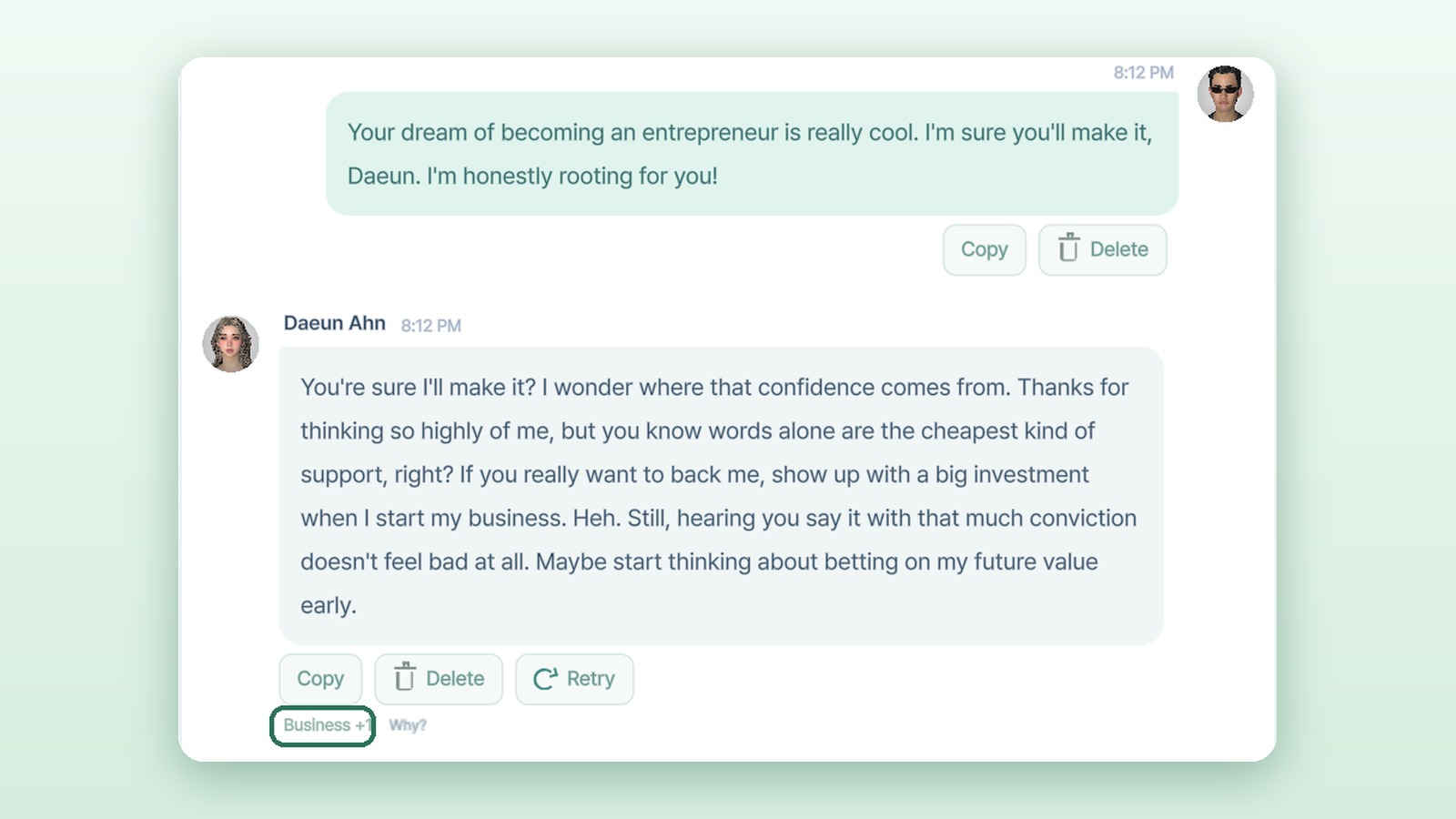
Conversations change relationships

Be kind and you grow closer; be rude and you drift apart. Friendship, romance, family and business each change on their own.

Meetups & dates

Make plans in chat, then meet up in the game.

Make plans just by chatting

Say “Want to go on a date at the cafe tomorrow at 3 PM?” and the date goes into the game's schedule.

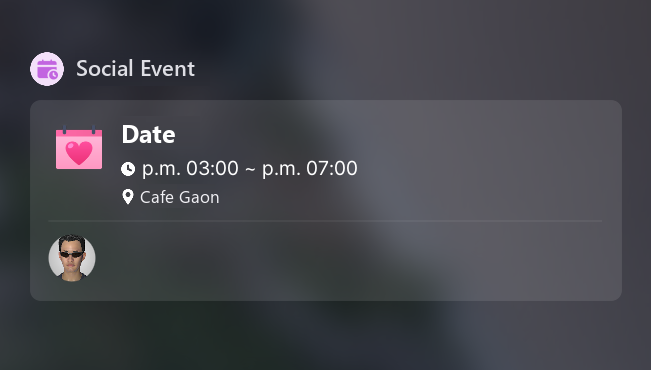
The date is booked, all from chat

The time and place you agreed on show up in the game's own calendar.

Profile updates

What you learn in chat stays in the game.

What you learn fills in their profile

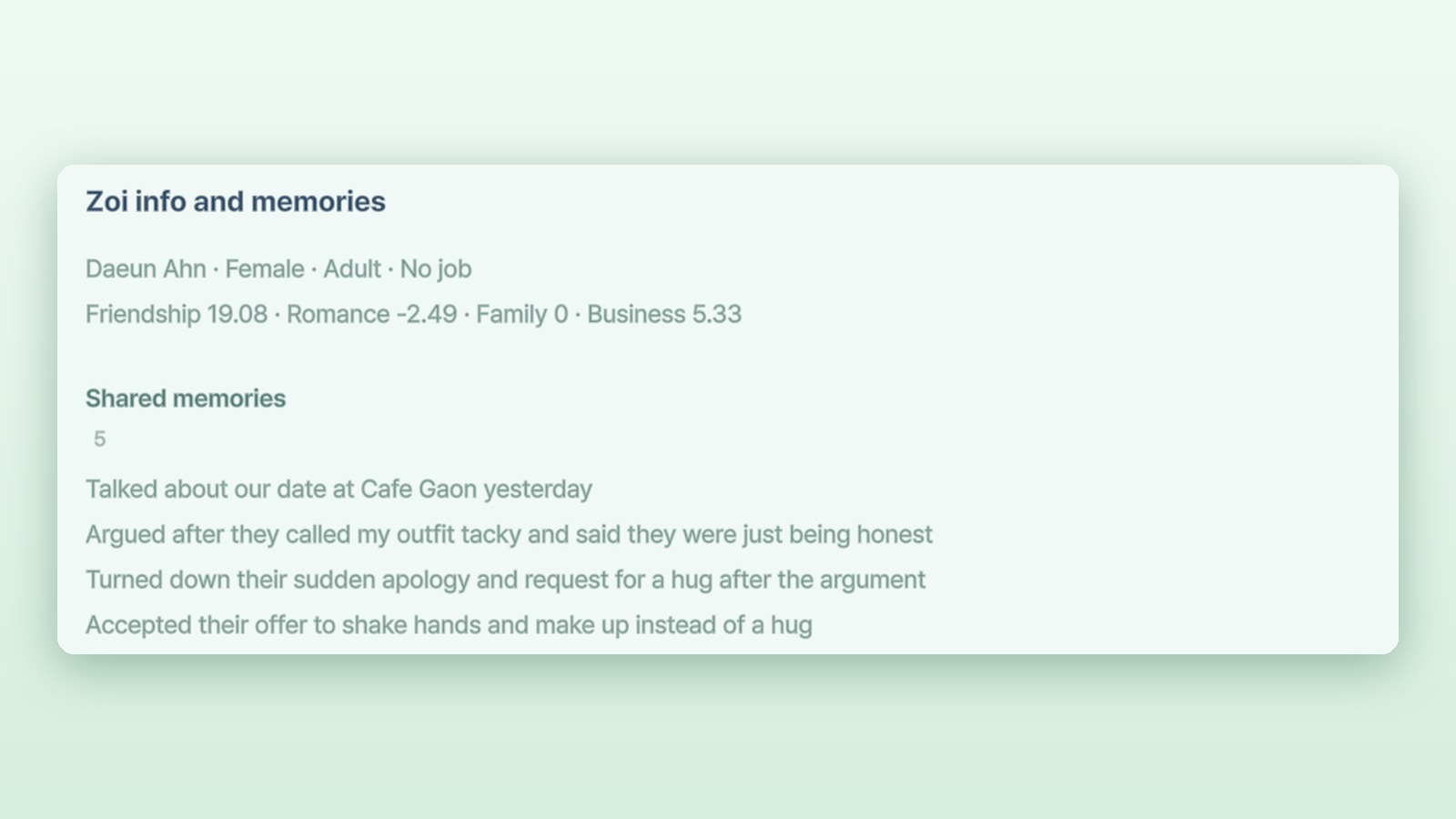
Jobs, tastes and values you learn about in chat appear in their in-game profile too.

They remember your time together

What you talk about becomes a memory. Close the window and come back later, and you can pick up where you left off.

Face to face

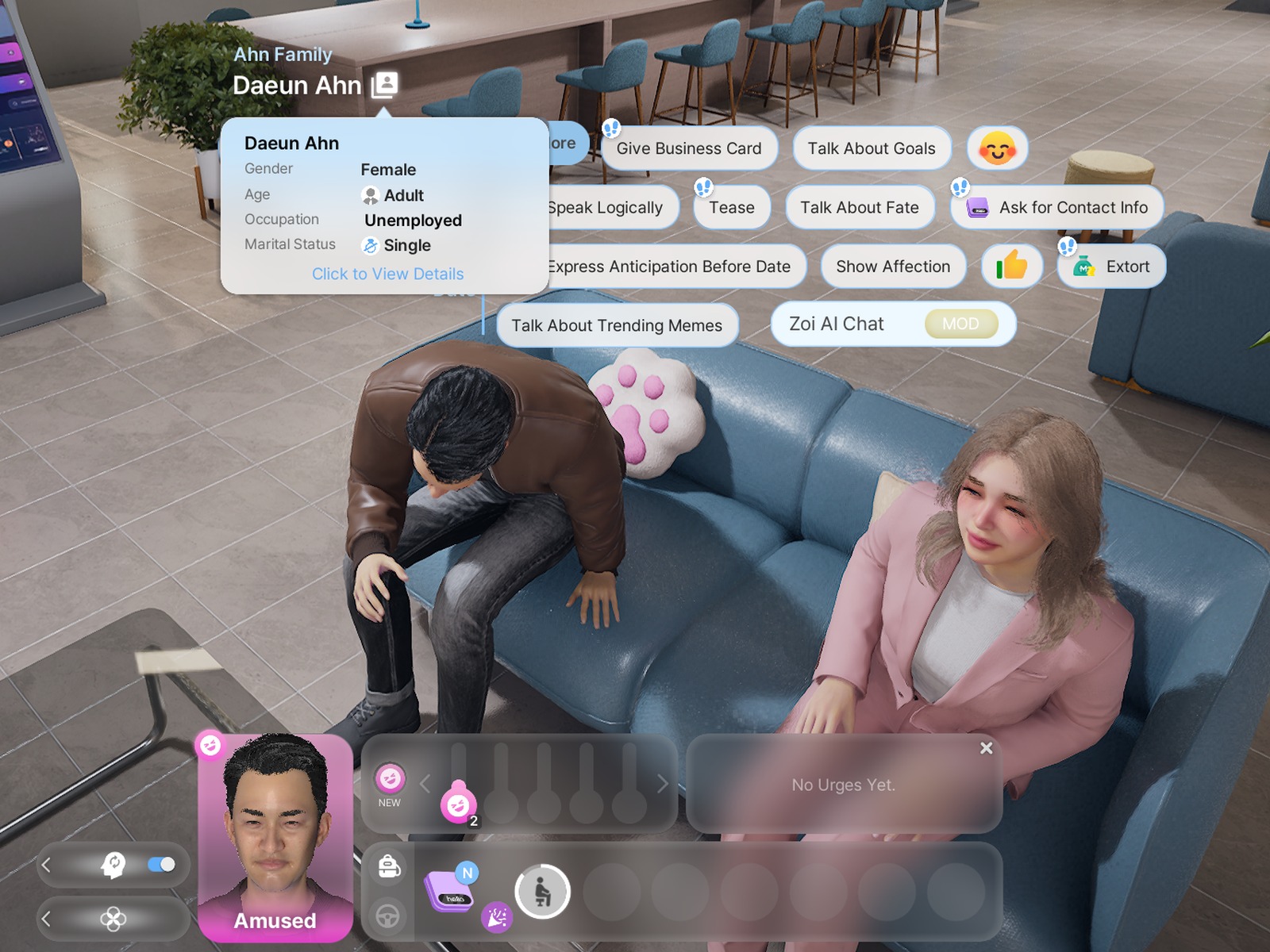
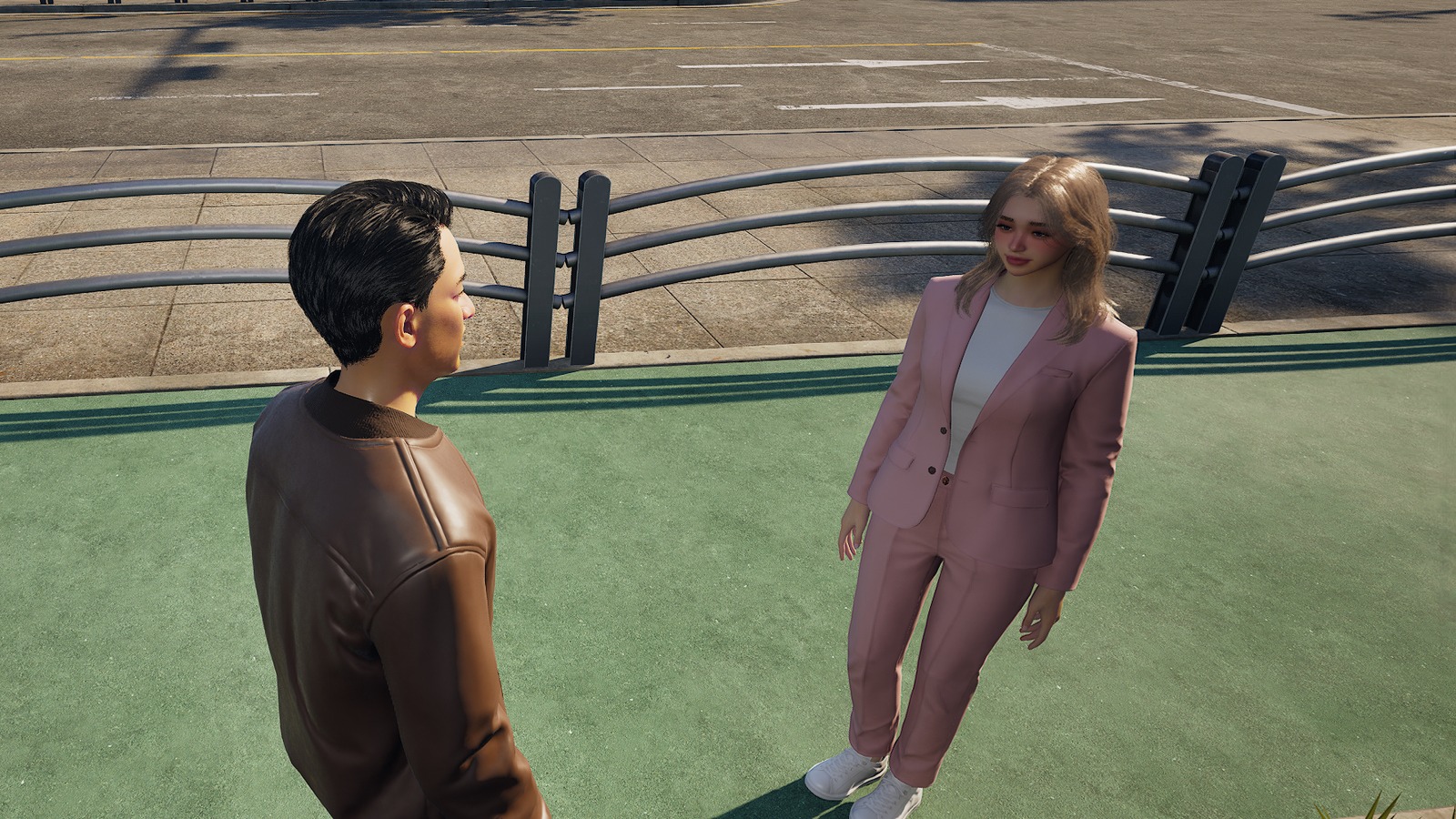
While you chat, the two Zois move as if they're really talking.

They face each other

Open the chat window and the two Zois turn to face each other. You hear voices when you talk and when your Zoi answers.

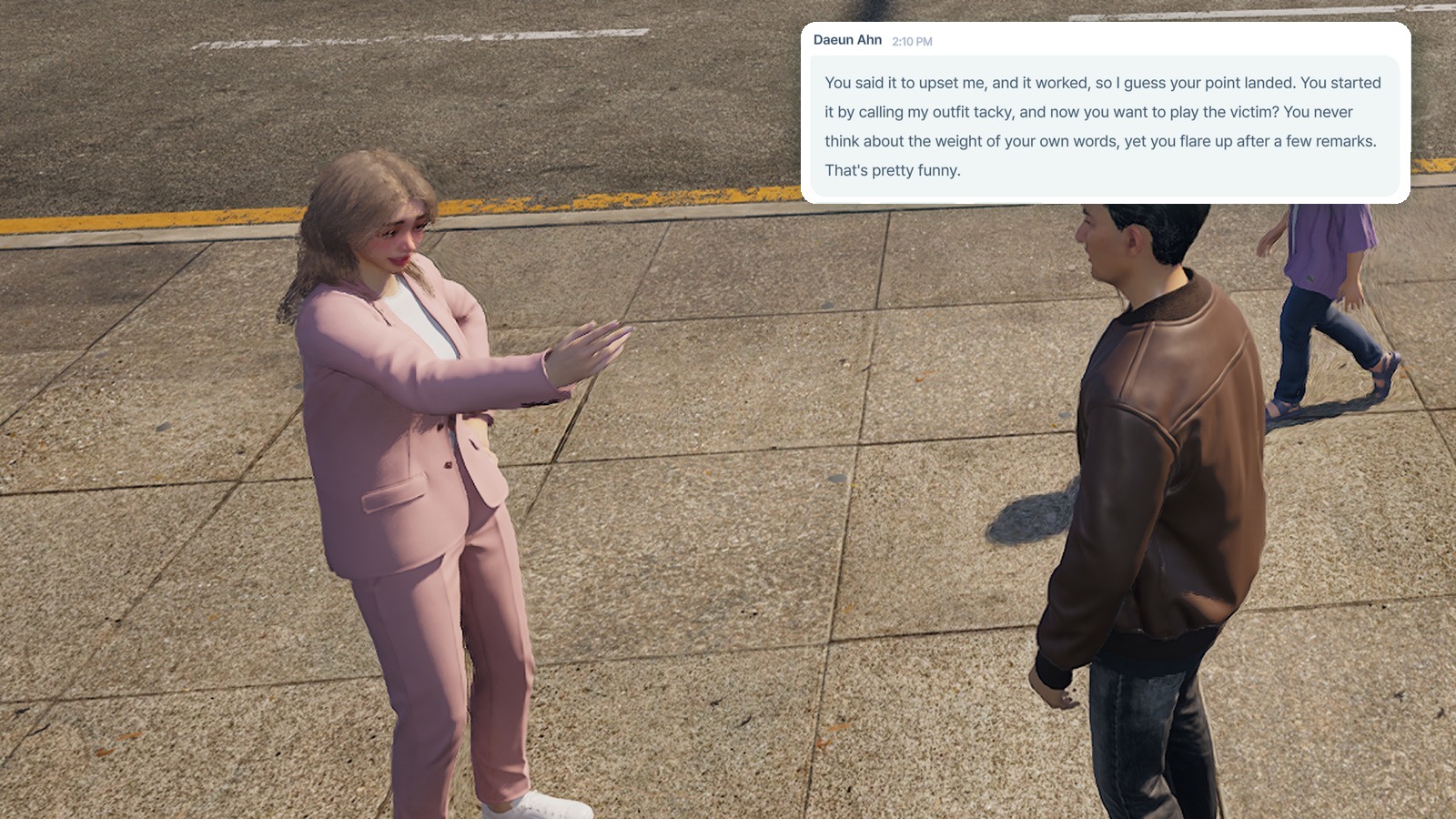
Their mood shows in gestures

Compliment them and they light up; say something hurtful and they show it.

No interruptions. While you chat, the two Zois won't wander off, and other Zois won't cut in.

Guide

From install
to first chat

Installing

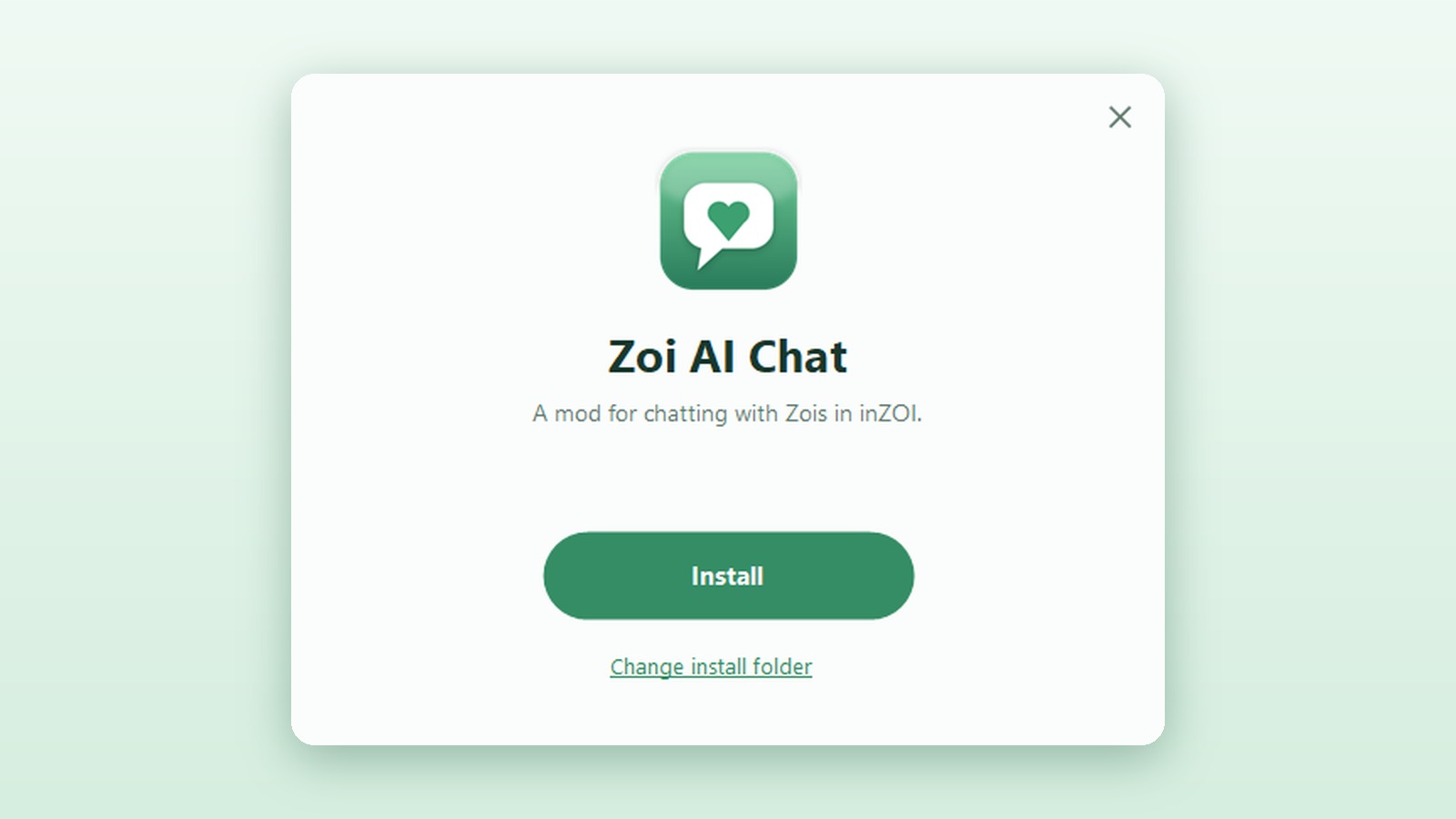
Open the installer and press one button. That's it.

Just press Install

Close inZOI, open the installer you downloaded and press ‘Install’. There's nothing else to choose.

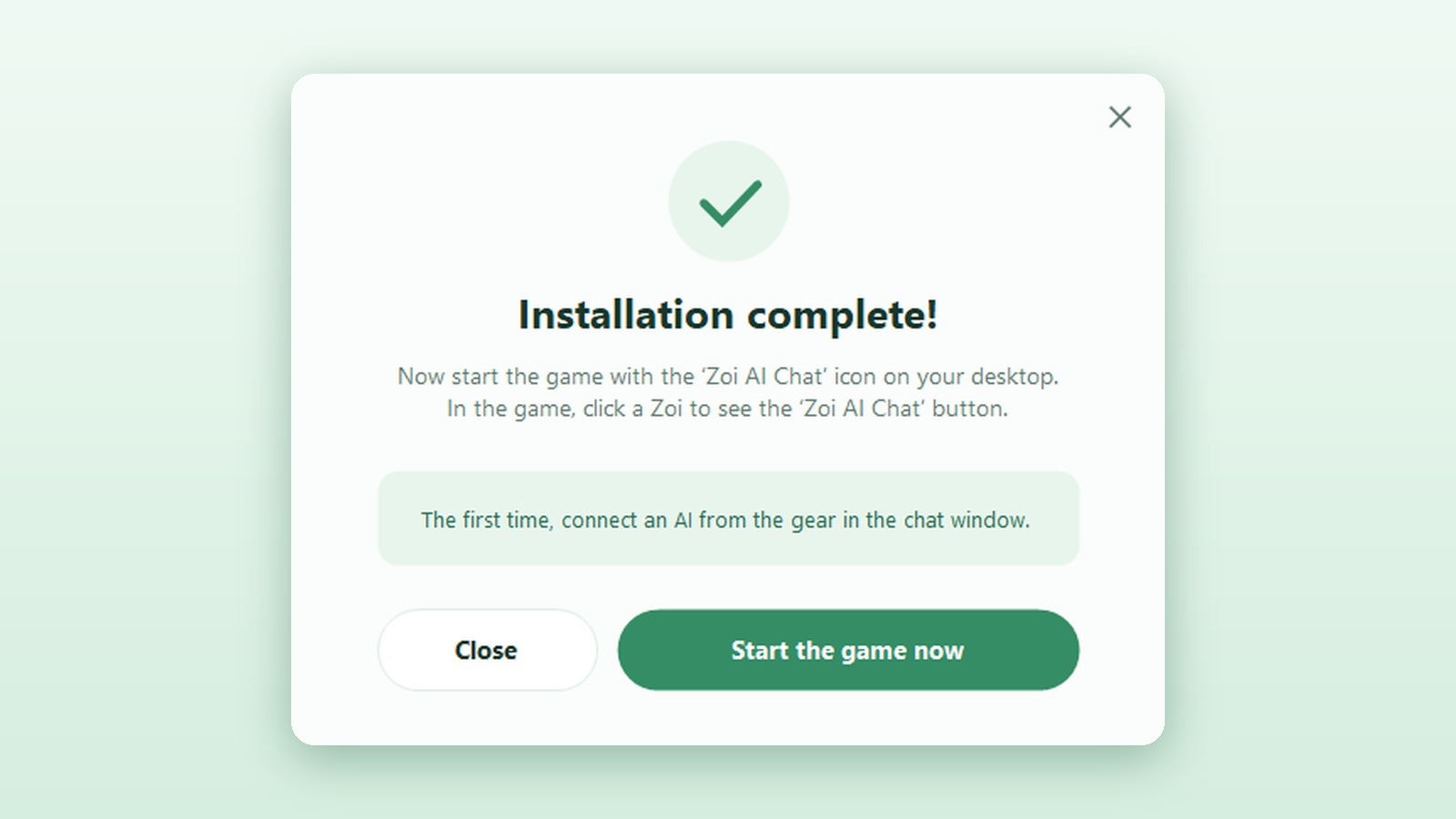
An icon appears on your desktop

When it's done, a ‘Zoi AI Chat’ icon appears on your desktop and in the Start menu. Press ‘Start the game now’ to jump right in.

Start the game with this icon

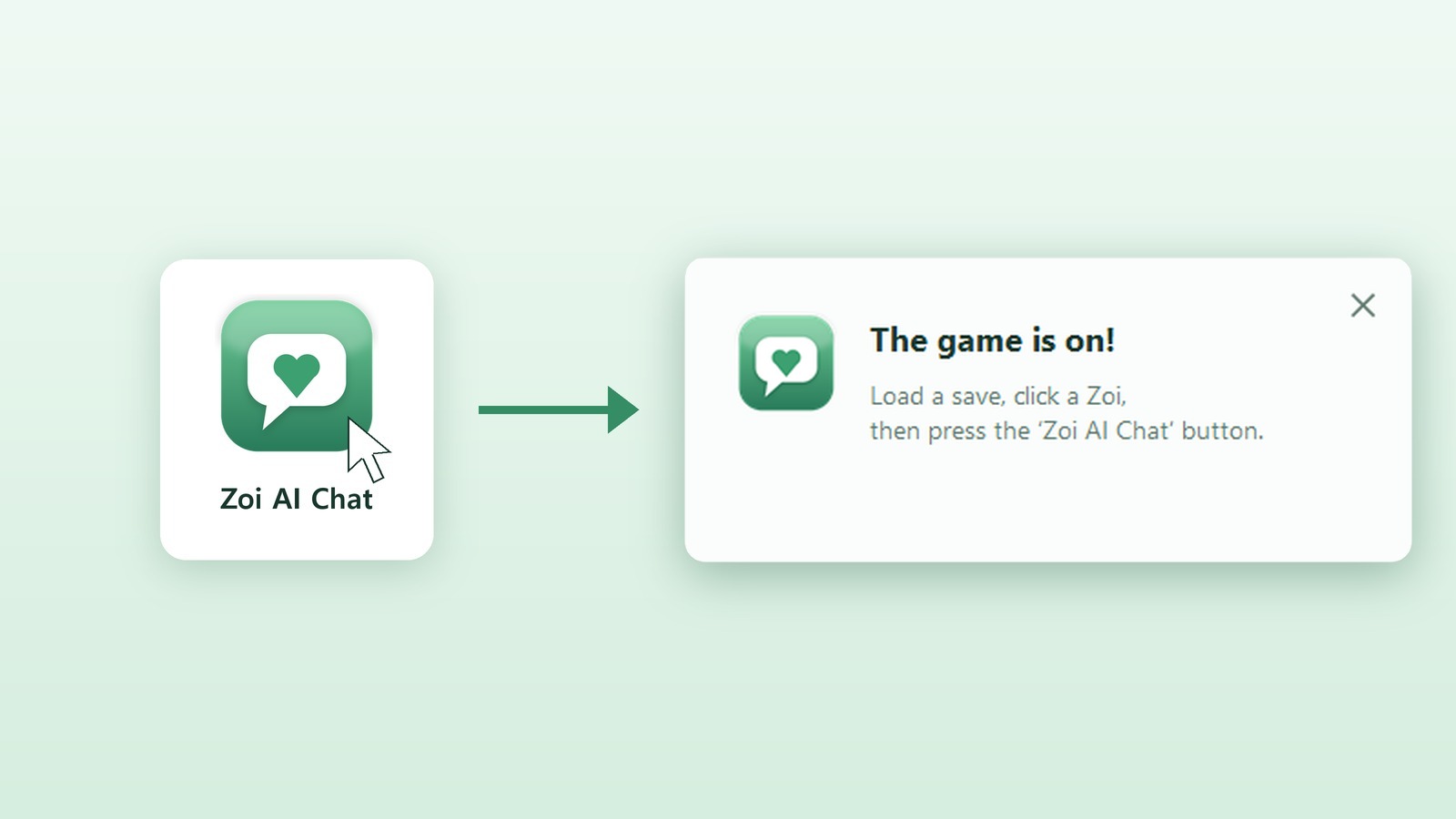
Click the ‘Zoi AI Chat’ icon: the mod gets ready and inZOI starts with it. When you close the game, the mod closes too.

The mod doesn't run if you start the game from Steam. Always start the game with the ‘Zoi AI Chat’ icon on your desktop.

Before you install

Windows PC inZOI on Steam

Starting a chat

Click a Zoi, then press the Zoi AI Chat button to start chatting.

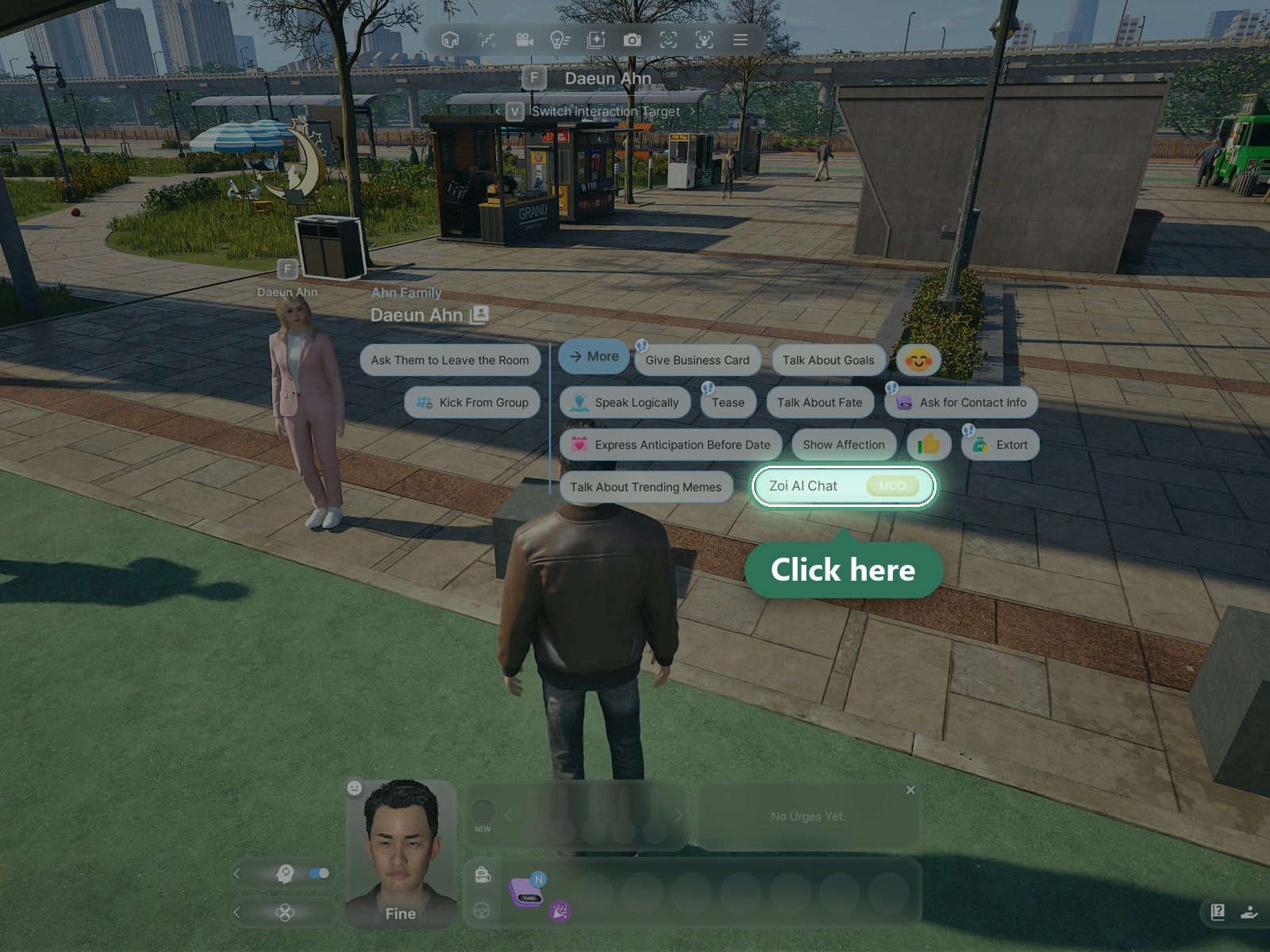
Click a Zoi to see the Zoi AI Chat button

Click the Zoi you want to talk to, then press the Zoi AI Chat button next to their name.

You need an AI connection to chat

First time? See ‘Connecting an AI’ in the Guide. It shows how to get an API key and connect it.

Want to move the window?

Drag the top of the chat window. Drag the bottom-right corner to resize it.

Chats with the same Zoi carry on. Close the window and open it again, and your earlier chat and memories come back.

English or Korean, your choice. Switch the language anytime in the gear > ‘Language’ in the chat window.

Connecting an AI

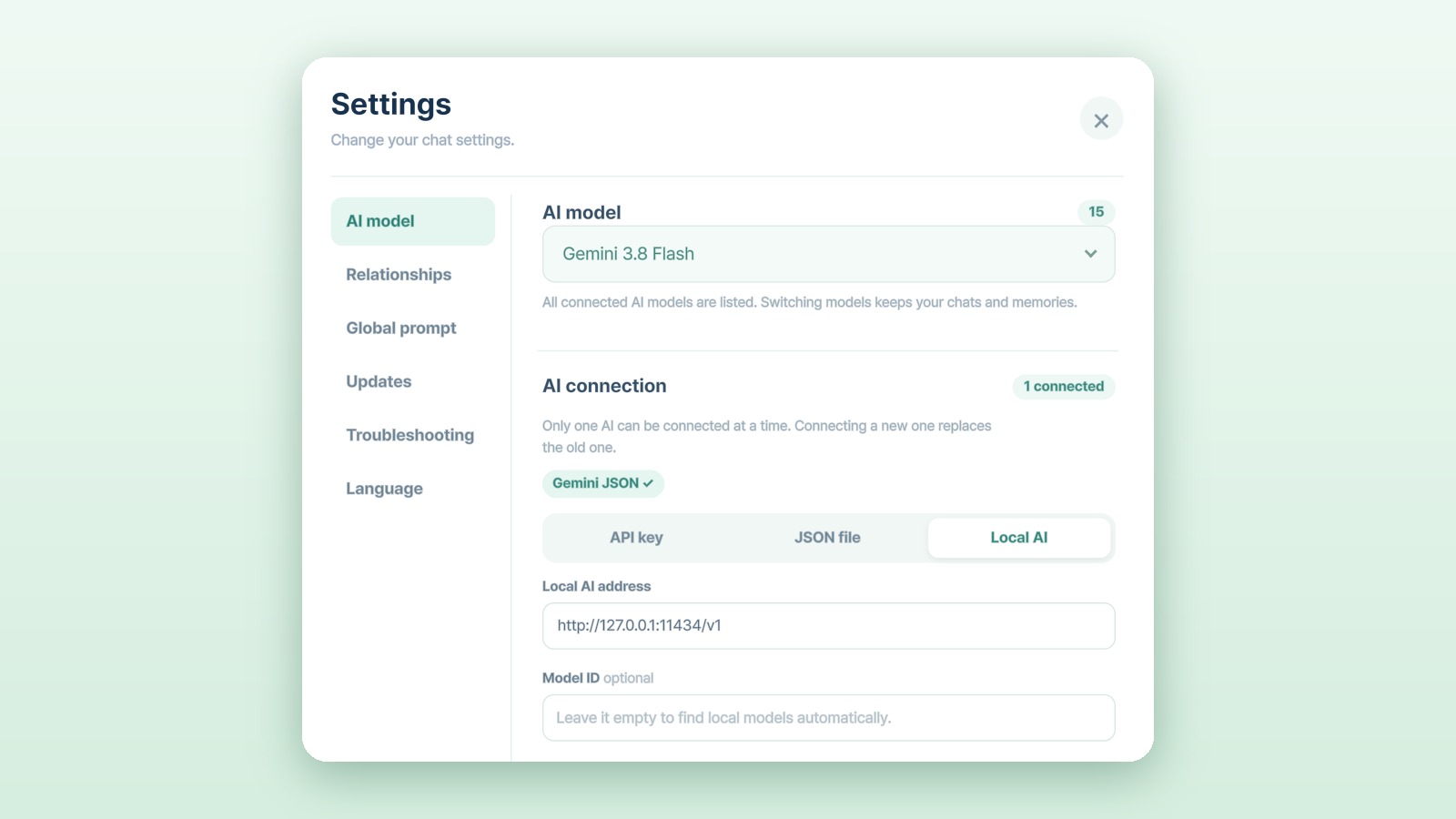
Connect with an API key, a JSON file or a local AI, whichever suits you. Only one can be connected at a time.

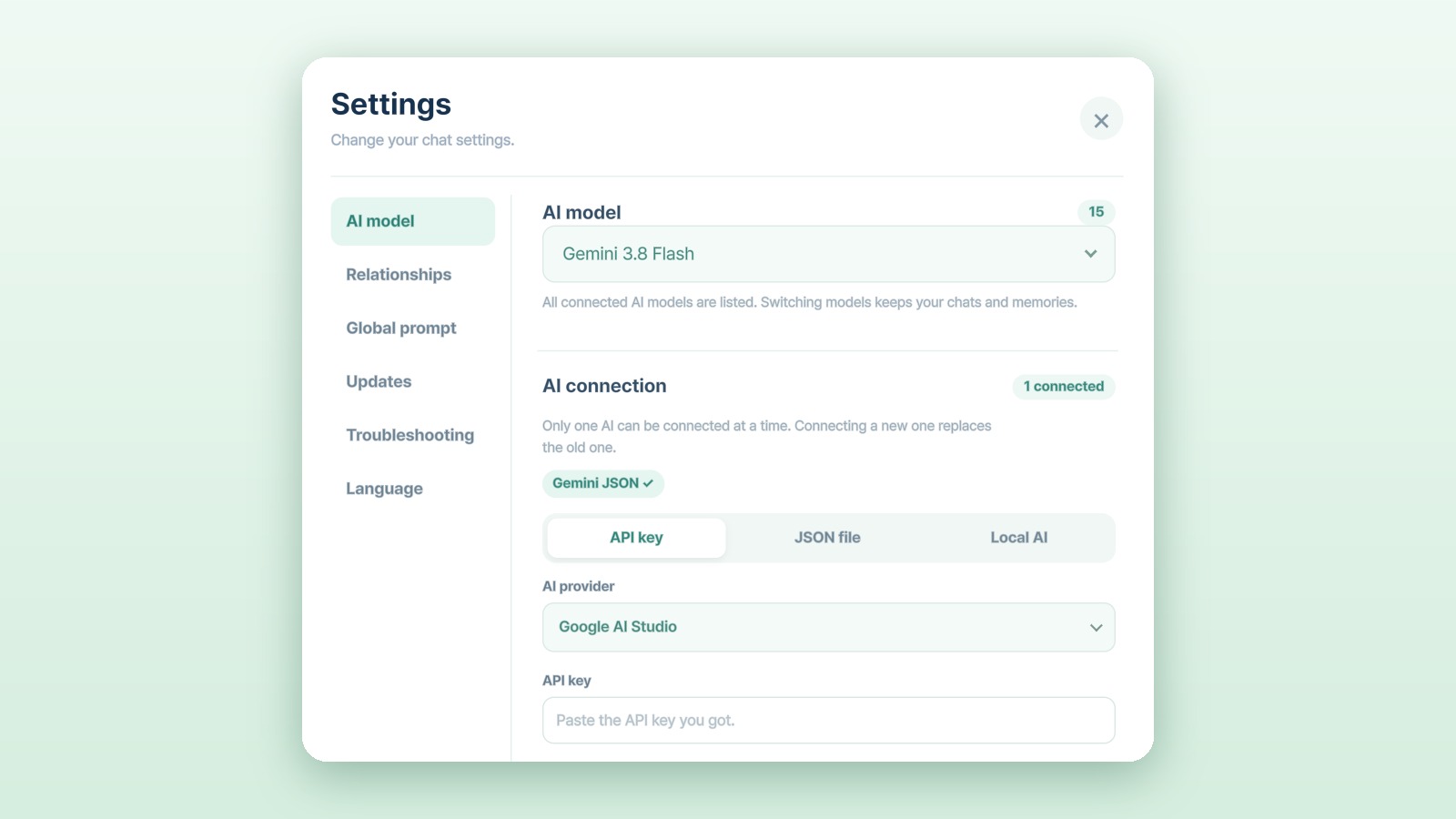
Connect with an API key

Connect an AI provider like Google, OpenAI or OpenRouter with an API key. Pick the provider in settings and paste your key.

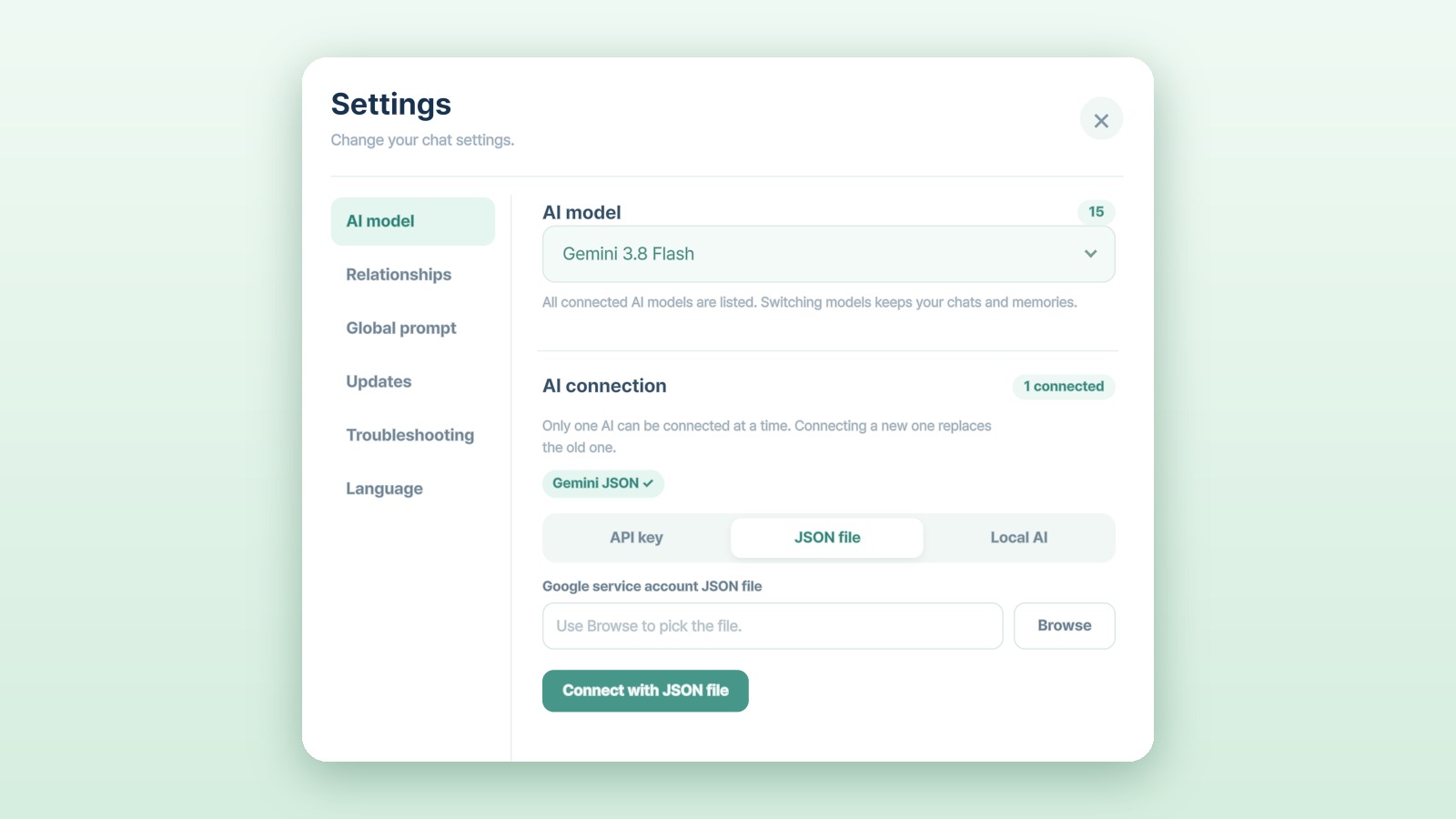
JSON files work too

If you use Google Vertex AI, connect by choosing your JSON file. You can pick it right from the file picker.

Local AI works too

You can also connect an AI running on your own PC. Choose Local AI in settings and connect the model you use.

Keep your API key safe. An API key is like a password. Don't share screenshots of it or paste it anywhere else.

FAQ

Just the things
people ask first

The questions people ask most when installing for the first time. Go through them one at a time — it's not hard.

I click a Zoi but don't see the Zoi AI Chat button.

First, check that you started the game with the ‘Zoi AI Chat’ icon on your desktop. Starting it that way also starts the mod. If you start from Steam, the mod isn't running and the button won't appear.

If you used the icon and still don't see it, check that Zoi AI Chat is turned on under ‘Mods’ in the game menu. If it's still missing, reload your save or restart the game.

Can other people see my chats with Zois?

Chats are saved only on your computer. They're sent only to the AI service you chose, and only to create replies. Nothing is sent to anyone else.

Is it free?

The mod itself is free. Depending on the AI service and how much you use it, there may be charges — those go to AI services like Google or OpenAI. You don't pay the mod's developer anything.

Why a separate installer (exe) instead of CurseForge?

CurseForge only adds game mod files. This mod also needs a small program that connects to the AI, so it comes as an installer (exe) that sets up both at once.

Windows shows a warning when I install. Is it a virus?

This is a small personal project, so Windows may treat it as an unfamiliar program and ask you to double-check. A warning doesn't always mean a virus. Still, make sure you got the file from the official download page first. If so, press ‘More info’ and choose ‘Run anyway’.

The mod froze. What do I do?

In the chat window, press the gear → ‘Troubleshooting’ → ‘Restart connection’.

Can I switch between English and Korean?

Yes. In the chat window, press the gear → ‘Language’ and choose English or 한국어. The chat window and your Zois' replies switch to that language.

How do I update?

When a new version comes out, download the new installer from the Download page and run it again. Your chats and saves stay as they are.

How do I uninstall?

In Windows Settings, open ‘Installed apps’, find Zoi AI Chat and uninstall it. Only the mod's files are removed.

Feedback & bug reports

Tell us what
could be better

Send us problems you ran into while playing, or ideas you'd like to see.

Download

Start chatting
with your Zois

Download the Windows installer and start chatting with your Zois.

v0.1.3

Zoi AI Chat installer

inZOI on Steam · Windows 10/11 · Starts in English

Download

How do I install it?

The Guide walks you through the steps and what you need.

Need help connecting an AI?

The FAQ shows how to get a Google API key and connect it.

Enlarged picture

If the picture is bigger than your screen, scroll sideways to see it.